Back to website
Login
Home
Login
Register
Back to website
There was a problem loading the comments.
How to export database table via phpMyAdmin in cPanel?
Support Portal
»
Knowledgebase
» Viewing Article
Print
20/06/2019 1:35 AM
Databases
1.
Log into your cPanel account.
2.
In the
Databases
section, click on the
phpMyAdmin
icon.
3.
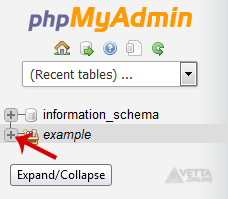
In left side-bar, Click on the
expand button
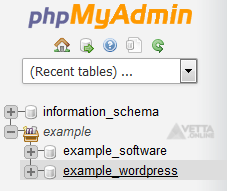
to expand the database like "example".
4.
Under your cPanel username, you can see a list of all databases. Please select an appropriate database which you want to export it to your PC.
5.
Click on the
Export
button.
6.
Select SQL format and then click on the
Go
button.
SQL file will be downloaded within a few seconds, but If a size is large, then it will take a long time.
Share via
Did you find this article useful?
Related Articles
How to create a new folder or files in the SiteWorx File Manager?
How to create an FTP Account in SiteWorx?
How to Disable features that cannot be overridden by another feature list from WHM Root?
Categories
4
Backup/Restore
24
cPanel - Control Panel
11
Databases
6
DNS - Nameservers
10
Domain Management
11
Email
6
— Mozilla Thunderbird
9
FTP
5
— FileZilla Client
6
Installing a Control Panel
8
Mail Filters & SPAM
11
Mobile
7
— Android
4
— iOS/Apple
3
Others
10
Security
61
SiteWorx (Control Panel)
2
— Backup/Restore
4
— Domain Management
6
— Email (SiteWorx)
3
— FTP
3
— Others (SiteWorx)
4
— Security (SiteWorx)
8
— SiteWorx Basic
31
— Softaculous (SiteWorx)
14
—— Blog
2
—— CMS/Portal
13
—— Forum
76
Softaculous
16
— Blog
43
— CMS/Portal
15
— Forum
19
SolusVM
6
— SolusVM Basic
13
— SolusVM VPS Management
5
SSL (cPanel)
17
WordPress
38
DirectAdmin
4
— Backup/Restore
8
— Databases (DA)
8
— Domain Management (DA)
6
— Email (DA)
4
— FTP
7
— Mail Filters & SPAM
18
WHM
12
— WHM (For Resellers)
5
— WHM (Root)
© Vetta Group