Back to website
Login
Home
Login
Register
Back to website
There was a problem loading the comments.
How to Change the Display Name of a WordPress User Account?
Support Portal
»
Knowledgebase
» Viewing Article
Print
20/06/2019 7:15 PM
WordPress
You can change the display name of your WordPress account, which shows on a WordPress post or comments without changing your WordPress username.
1.
Login to your WordPress admin dashboard.
2.
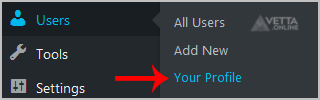
Under the dashboard menu, hover your mouse over
Users
and then click on
Your Profile
.
3.
Locate
Nickname
and enter your new name.
4
. In the option
Display name publicly as
, choose your newly added nickname from the drop-down menu.
Share via
Did you find this article useful?
Related Articles
How to Install SMF Simplemachine Forum via Softaculous in cPanel?
How to Install SMF Simplemachine Forum via Softaculous in SiteWorx?
How to install cPanel?
Categories
4
Backup/Restore
6
DNS - Nameservers
11
Databases
38
DirectAdmin
4
— Backup/Restore
8
— Databases (DA)
8
— Domain Management (DA)
6
— Email (DA)
4
— FTP
7
— Mail Filters & SPAM
10
Domain Management
11
Email
6
— Mozilla Thunderbird
9
FTP
5
— FileZilla Client
6
Installing a Control Panel
8
Mail Filters & SPAM
11
Mobile
7
— Android
4
— iOS/Apple
3
Others
5
SSL (cPanel)
10
Security
61
SiteWorx (Control Panel)
2
— Backup/Restore
4
— Domain Management
6
— Email (SiteWorx)
3
— FTP
3
— Others (SiteWorx)
4
— Security (SiteWorx)
8
— SiteWorx Basic
31
— Softaculous (SiteWorx)
14
—— Blog
2
—— CMS/Portal
13
—— Forum
76
Softaculous
16
— Blog
43
— CMS/Portal
15
— Forum
19
SolusVM
6
— SolusVM Basic
13
— SolusVM VPS Management
18
WHM
12
— WHM (For Resellers)
5
— WHM (Root)
17
WordPress
24
cPanel - Control Panel
© Vetta Group