Back to website
Login
Home
Login
Register
Back to website
There was a problem loading the comments.
How to Remove Email account in SiteWorx?
Support Portal
»
Knowledgebase
» Viewing Article
Print
20/06/2019 4:00 AM
Email (SiteWorx)
To remove an email address, perform the following steps:
1.
Log into your SiteWorx account (e.g. www.example.com:2443/siteworx/ ).
2.
Under
SiteWorx Menu
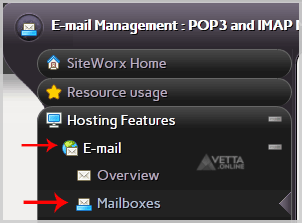
, click the
Hosting Features
menu item if it is not already open.
3.
Click the
E-mail
menu item and then click on the
Mailboxes
option.
4.
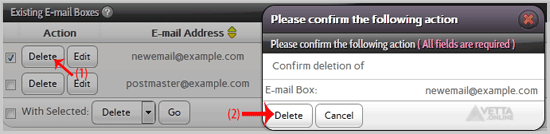
Under the
Existing E-mail Boxes
tab, select the appropriate E-mail address you wish to remove and then click on the
Delete
button.
5.
For confirmation, click again on the
Delete
button.
You should see a success message notifying you that your e-mail address has been removed.
Share via
Did you find this article useful?
Related Articles
How to create an E-mail Autoresponder when you are unavailable or on vacation in SiteWorx?
How to remove email spam filters from DirectAdmin?
How to Delete Account Level/Global Email Filter in cPanel?
Categories
4
Backup/Restore
6
DNS - Nameservers
11
Databases
38
DirectAdmin
4
— Backup/Restore
8
— Databases (DA)
8
— Domain Management (DA)
6
— Email (DA)
4
— FTP
7
— Mail Filters & SPAM
10
Domain Management
11
Email
6
— Mozilla Thunderbird
9
FTP
5
— FileZilla Client
6
Installing a Control Panel
8
Mail Filters & SPAM
11
Mobile
7
— Android
4
— iOS/Apple
3
Others
5
SSL (cPanel)
10
Security
61
SiteWorx (Control Panel)
2
— Backup/Restore
4
— Domain Management
6
— Email (SiteWorx)
3
— FTP
3
— Others (SiteWorx)
4
— Security (SiteWorx)
8
— SiteWorx Basic
31
— Softaculous (SiteWorx)
14
—— Blog
2
—— CMS/Portal
13
—— Forum
76
Softaculous
16
— Blog
43
— CMS/Portal
15
— Forum
19
SolusVM
6
— SolusVM Basic
13
— SolusVM VPS Management
18
WHM
12
— WHM (For Resellers)
5
— WHM (Root)
17
WordPress
24
cPanel - Control Panel
© Vetta Group